Run an appeal, step by step
This guide is for the person preparing an appeal for a fundraiser or supervisor. You can prepare the work without sending anything. Get your supervisor’s approval before any actual send.
The pictures use fictional Northstar examples. Fall Renewal FY27 is a completed appeal; Lapsed Donor Recovery shows unfinished setup. Your appeal names and counts will differ.
Start at relae.ai, sign in, and check the organization name in the sidebar. Make sure it is the organization you intend to work in, not a demo or test organization.
If you only need a mailing file, follow the quick route below. For a new appeal, start at step 1. Use the Mailchimp section only when your supervisor has chosen that delivery route.
Quick route: “I need the CSV”
Section titled “Quick route: “I need the CSV””If your supervisor has already created the appeal:
- Open Appeals, then open the named appeal. Check the campaign and appeal names.
- In the appeal overview, click Show steps if the preparation tasks are hidden. Choose Open beside Audience & output groups, then Open beside Ask amounts to review amounts or confirm that none are needed.
- Choose Open beside Communication plan and open the intended stage. Confirm its channel, date and audience. Save any changes.
- Choose Open beside Messages & delivery or Lists & delivery. Select Lists only when preparing files for your own sending tool.
- Open that stage’s Review for preparation or Prepare recipients action. Check recipients, exclusions, greetings and asks. Confirm the review, then finish preparation.
- Choose Review prepared list, then Export for another tool. Under Format, choose CSV, wait for its preview, then click Download CSV. Some prepared stage rows offer Download CSV directly.
- Open the downloaded file and check its name, row count, email/address column and ask amounts. Give this exact version to your supervisor.
Expected result: you have a saved recipient list and a CSV on your computer. Nobody has been emailed or marked sent.
1. Understand the four things you are working with
Section titled “1. Understand the four things you are working with”| Term | What it means | Example |
|---|---|---|
| Campaign | The wider fundraising effort an appeal belongs to. | Annual Fund 2026 |
| Appeal | A particular request for support, with its own audience and plan. | Autumn renewal |
| Stage | One planned contact in that appeal. | First email, then a reminder |
| Prepared list / wave | A saved version of a stage’s recipients, contact details and asks. | First email prepared on Tuesday |
A segment selects people using rules or manual choices. An output group groups recipients for the files or communications you produce, such as different letter versions. Review both; a sensible group name does not prove that its membership is correct.
The appeal opens on its overview. Click Show steps if the preparation tasks are hidden. The four tasks are Audience & output groups, Ask amounts, Communication plan, and Messages & delivery. The last becomes Lists & delivery when Lists only is selected. Choose Open beside the task you need. An unfinished appeal may already show all four tasks.
2. Get the brief and check your access
Section titled “2. Get the brief and check your access”Before clicking anything, ask your supervisor for:
- The campaign and appeal names, purpose, target date and channel.
- Who should receive it, and who must be excluded.
- Whether to include suggested donation amounts, and who approves them.
- The approved greeting, message, sender details and delivery tool.
You need an account allowed to edit the appeal. An organization administrator handles shared connections and contact-policy changes. If a control is disabled, ask for help rather than using another person’s account.
Expected result: you know which appeal you are preparing and which decisions need approval.
3. Open or create the right appeal
Section titled “3. Open or create the right appeal”Open Appeals, or open the appeal from its campaign. If it already exists, use it; do not create a second appeal to download another file.
For a new appeal, use the creation controls. Build manually is available from the campaign’s appeal entry. Choose the campaign, give the appeal a clear name and complete its setup. In the Create appeal form, Appeal goal (optional) belongs to the appeal; it does not change the campaign goal. Configure later leaves ask amounts to be decided; No amounts deliberately prepares an appeal without suggested amounts.
Save and open the appeal. If saving is unconfirmed, use its retry/recovery control; do not submit another copy.
Expected result: the saved appeal opens under the intended campaign.
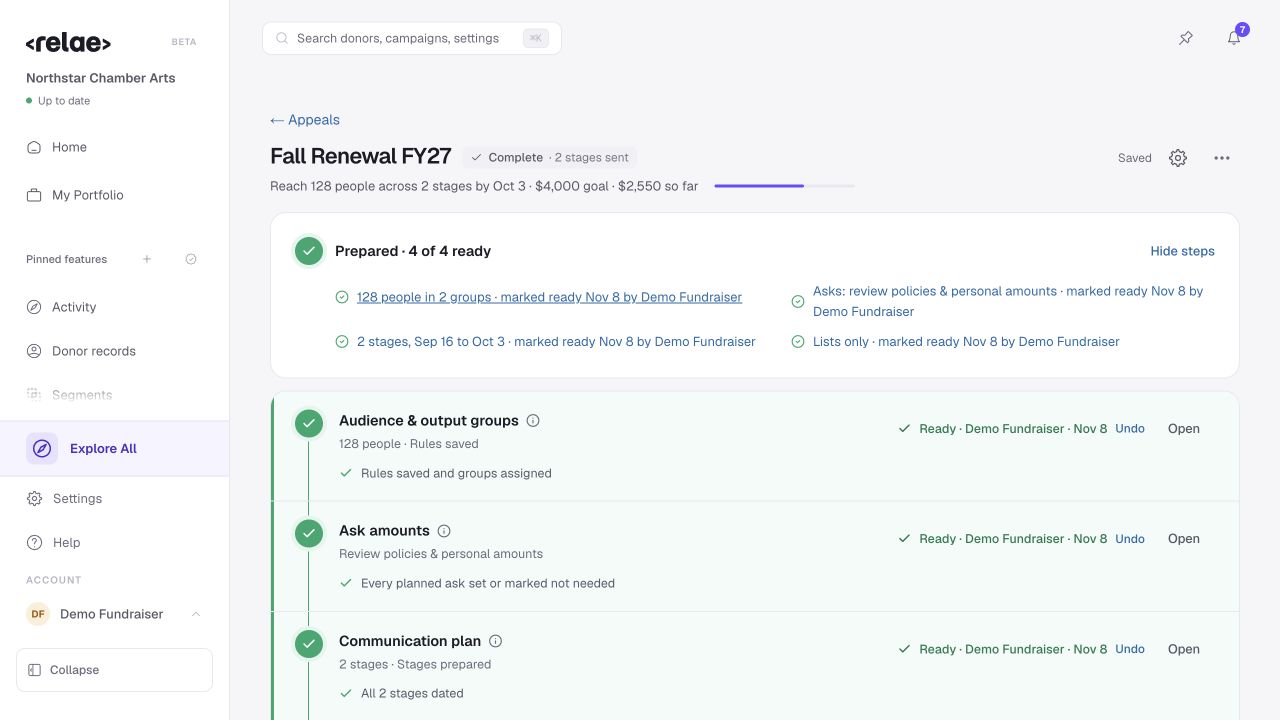
View the appeal overview screenshot full size
4. Choose and inspect the audience
Section titled “4. Choose and inspect the audience”- In the appeal overview, click Show steps if needed, then Open beside Audience & output groups.
- Review the inclusion segments and their rules. Translate each into plain English: “People who gave last year,” for example.
- Review exclusion segments and personal holds. Check the named recipient lists as well as totals.
- Check segment order and output-group assignments. If people qualify for several segments, do not assume they will be exported several times; inspect the resulting allocation.
- Save your changes and wait for recalculated counts.
Households can represent several donors but one recipient. A donor count and a recipient count can therefore differ. Check the primary contact and contributing donors when a household result is unexpected.
Unknown permission is not the same as do-not-contact. Your organization’s policy may include an address with unknown permission in a file. That does not prove consent or subscription in an email service. Explicit opt-outs, applicable contact restrictions and suppressions still matter. Unknown address validity is also a separate fact; it can prevent use even when a policy permits unknown permission.
For policy questions, ask an administrator to review Settings → Data and privacy → Email permissions. Do not change a restriction or invent permission evidence to make someone appear in a list.
Expected result: you can explain who is included, who is excluded and why.
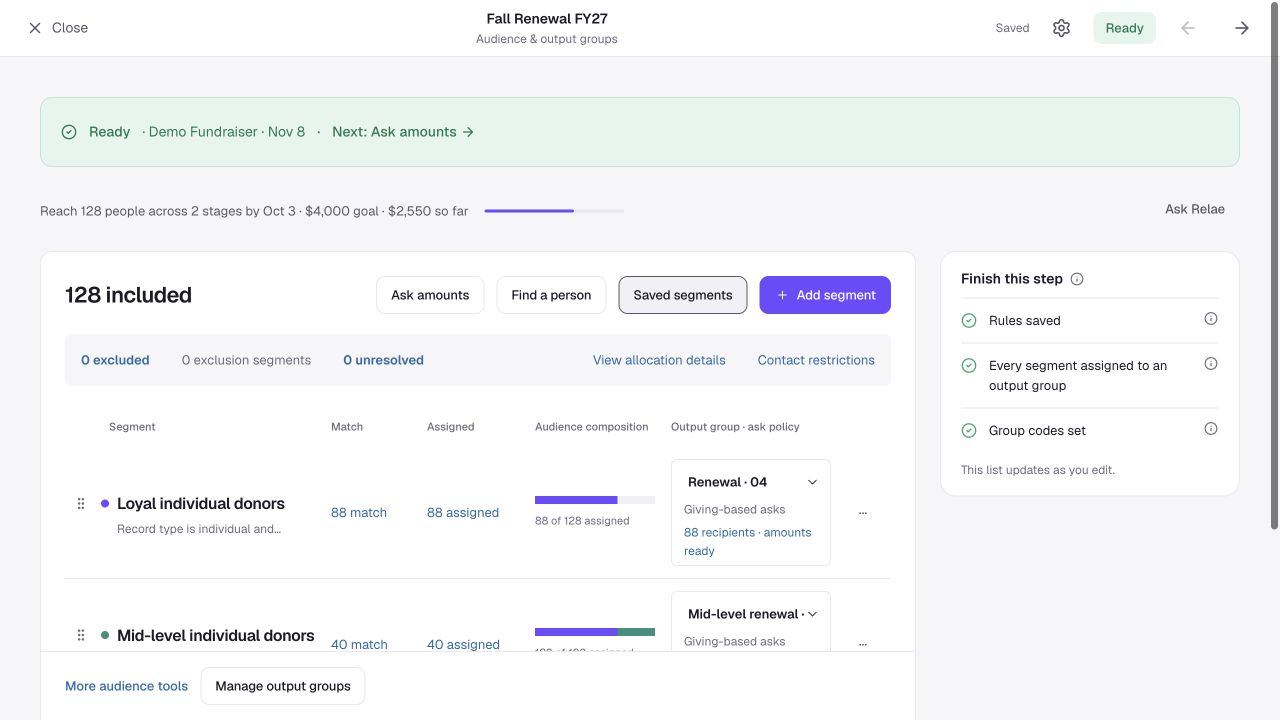
View the audience screenshot full size
5. Set ask amounts and greetings
Section titled “5. Set ask amounts and greetings”In the appeal overview, click Show steps if needed, then Open beside Ask amounts. Add ask amounts or Ask settings opens Appeal ask settings.
- Choose the number of Ask amounts per recipient, or No amounts if your supervisor approved that choice.
- If using amounts, set Letter ask position: which amount goes into the letter’s main ask. It is separate from how amounts are calculated.
- Click Save appeal ask settings.
- Review the appeal/group/recipient policies and individual overrides used to calculate amounts. Check a few known donors, including someone without giving history. Resolve every missing amount required for the stage.
During recipient preparation, check greetings. For missing greetings, correct the record or use Use display names only if your supervisor approves that wording. Read the resulting greetings; a display name may be formal or represent a household.
Expected result: each recipient has the required amounts and a usable greeting, or the appeal explicitly uses no amounts.
6. Plan the contacts
Section titled “6. Plan the contacts”- In the appeal overview, choose Open beside Communication plan. Use Show steps first if the tasks are hidden. Select Add stage, or open an existing stage.
- Set its Name, Channel and date/timing. A reminder may be timed after another stage.
- Confirm whether its audience is everyone included in the appeal or selected segments.
- Review the stage’s delivery settings and notes.
- Use Add to plan for a new stage or Apply changes for edits.
Saving a stage does not prepare or send it. Editing the plan also does not rewrite an already prepared list.
Expected result: the plan shows the intended contacts in the correct order, with saved timing and audience choices.
7. Prepare the recipient version
Section titled “7. Prepare the recipient version”In the appeal overview, choose Open beside Messages & delivery or Lists & delivery. Use Show steps first if needed. For a straightforward external mailing or email merge, choose Lists only. Compose in Relae is the alternative for writing stage messages and choosing a delivery route; it is not a promise that pressing Prepare sends them.
- Open the stage’s Review for preparation action. Depending on the entry point, the preparation screen says Prepare recipients, Prepare wave or Prepare next wave.
- In Recipient setup, confirm the stage, channel and selected segments.
- Review Recipient rules, including whether responders are suppressed and usable contact details are required.
- Continue to Review recipients. Inspect included people and Excluded recipients, with their reasons.
- Fix missing asks, greetings or address problems. If the reviewed count differs from a planned count, read the explanation before accepting it.
- Check I reviewed recipients, exclusions, asks and source coverage. Complete the preparation action.
For postal work, people missing mailing addresses may appear on a separate Address collection sheet. They are not a ready-to-mail audience and cannot be recorded as sent through that missing-address route.
Expected result: the stage says its recipients are prepared. The saved version has not been sent.
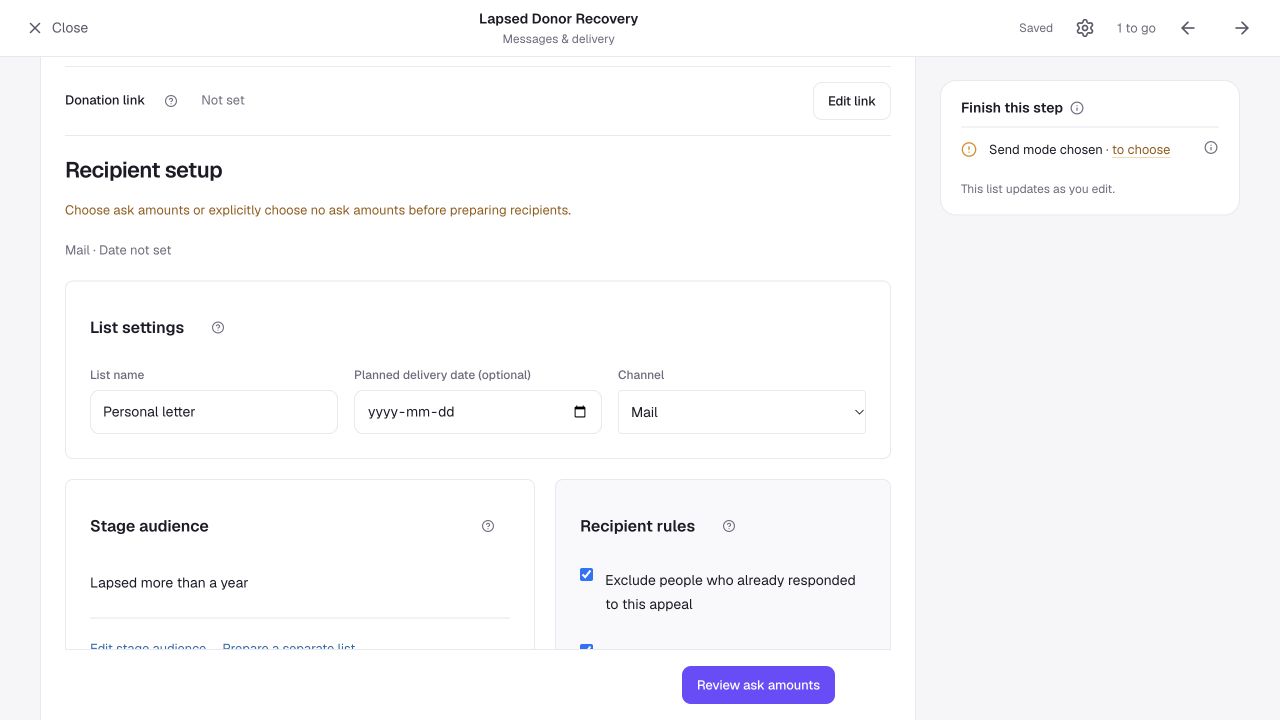
View the recipient setup screenshot full size
8. Download and use a CSV
Section titled “8. Download and use a CSV”Open Review prepared list, then Export for another tool. Select CSV under Format, review the preview and choose Download CSV. An XLSX option is also available; choose the format requested by your supervisor or delivery tool.
Check the downloaded file before using it:
- Recipient count and the correct contact/address column.
- Greetings, group codes and ask/letter-ask values where applicable.
- The intended campaign, appeal and wave identifiers.
Keep identifier columns intact. When sorting, sort whole rows together. Do not treat a blank sent date as an instruction to fill today’s date in the spreadsheet.
Use your organization’s approved printing, mail-merge or email-tool process. Relae does not learn that a file was sent merely because you downloaded or uploaded it elsewhere.
Expected result: the delivery tool receives the reviewed file, with supervisor approval. Downloading still has not recorded a send.
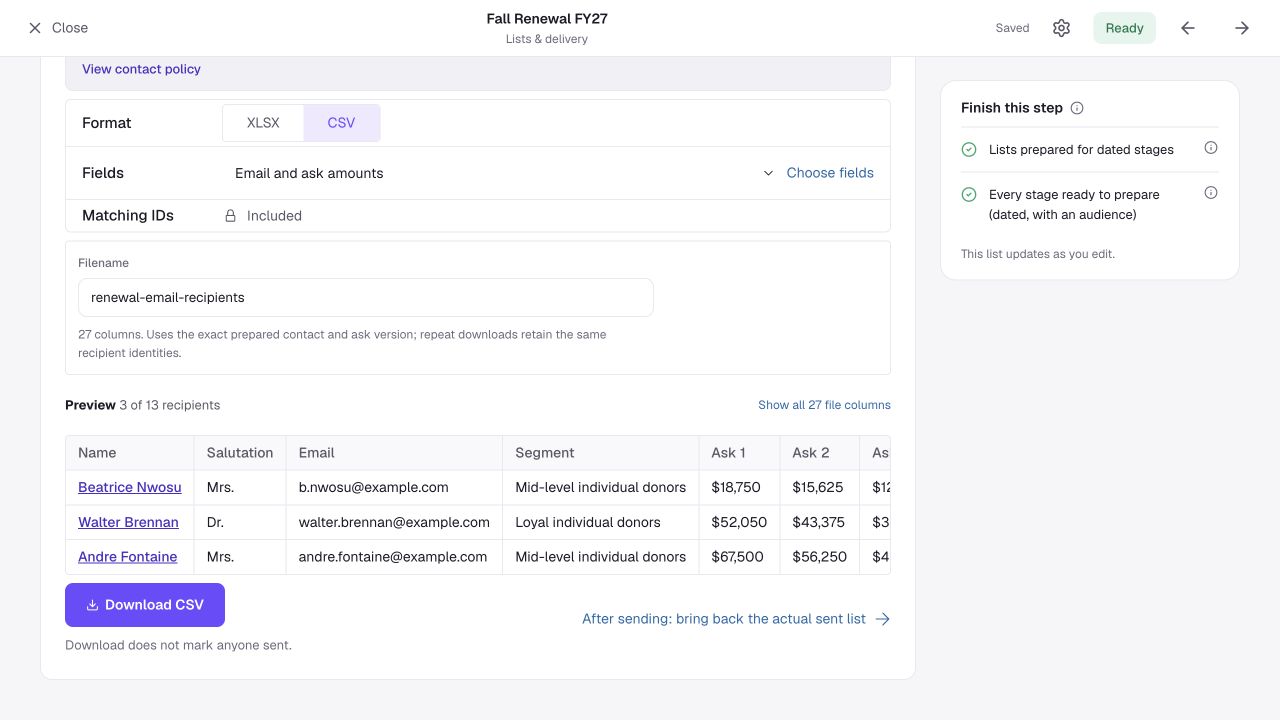
View the CSV screenshot full size
9. Use Mailchimp
Section titled “9. Use Mailchimp”Keep these names separate: a Relae campaign organizes fundraising; a Mailchimp account is the connected service; an audience is its contact list; a Mailchimp campaign is a particular email draft/send.
An administrator manages the connection at Settings → Connections. In the appeal, use Choose email account or the available account selection. Confirm the account before selecting its destination audience.
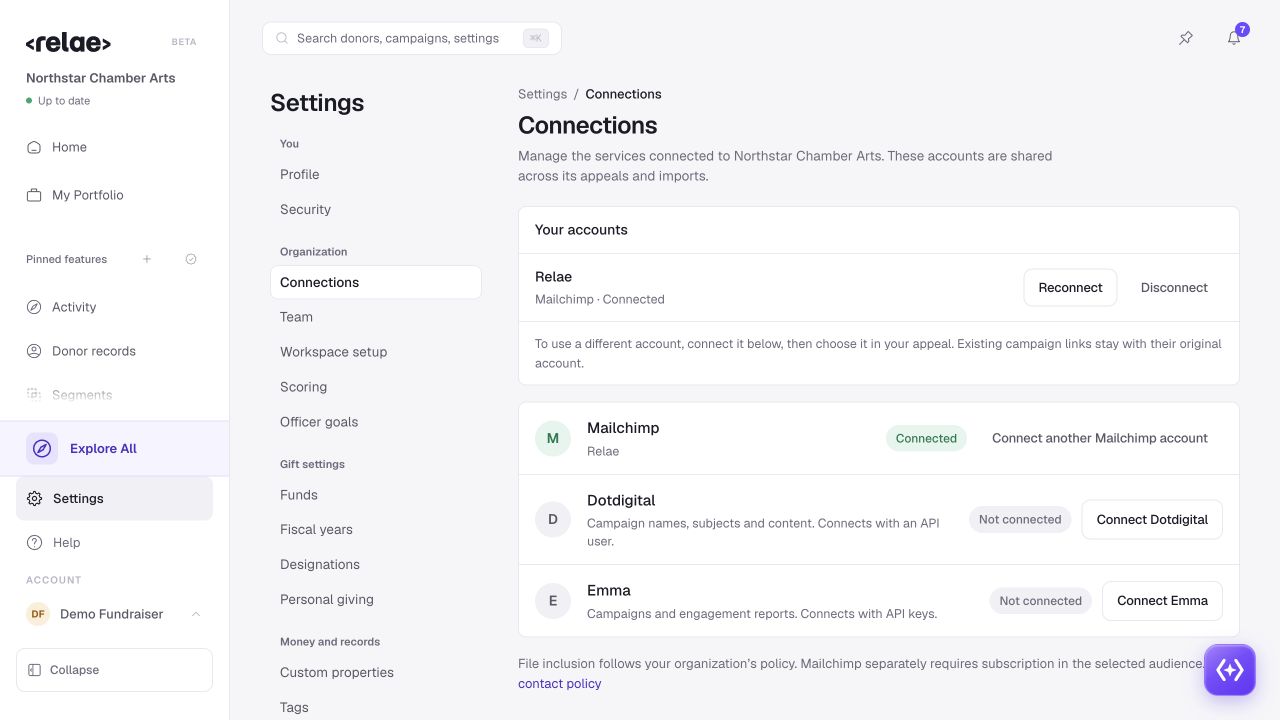
View the Mailchimp connections screenshot full size
If this stage offers Create Mailchimp draft, use its native draft route:
- Prepare recipients for provider delivery.
- Choose the Destination audience in Mailchimp.
- Check Subject, From name, Reply-to email and Common message.
- Read the authorization checkbox describing the transfer to Mailchimp, then authorize only if approved.
- Click Create Mailchimp draft and wait for its saved handoff status.
- Click Review draft in Mailchimp. Have your supervisor check recipients, content, sender details and any scheduling, then send in Mailchimp.
This route requires addresses already subscribed in the selected Mailchimp audience and still permitted in Relae. Connection alone does not subscribe anyone. The draft route does not change subscriptions or send the email.
This draft route is available only where the stage and account support it. The current native draft uses one common message, up to 15,000 unique addresses. Its requirements explicitly exclude merge fields; personalized asks, greetings and donation links are available through the recipient file. Choose the file workflow when those are required.
Expected result: a draft exists in the correct Mailchimp account. A draft is not a confirmed send.
10. Record completed sends
Section titled “10. Record completed sends”For external delivery without a synced report, use Mark as sent or Record sent date on the appropriate prepared list. The dialog is Record actual sent date.
- Confirm with your supervisor that delivery happened.
- Enter Sent date.
- Under Who was contacted?, choose All remaining recipients or Selected segments accurately.
- Save with Record sent date.
This records history; it does not deliver anything. Email dates must represent actual sending. Postal work can record a future date; it remains scheduled until that organization’s calendar day arrives. Do not mistake a scheduled postal list for completed outreach.
For Mailchimp, after sending, use Check send status and then Review sent report. Choose the exact Sent Mailchimp campaign and click Sync report. A complete report sync records sent dates for matched recipients that do not already have them. Review unresolved or ambiguous items; do not mark the whole prepared audience sent to hide a mismatch.
Expected result: Relae’s recorded sends reflect actual outreach, not preparation or file creation.
11. Check results and prepare follow-up
Section titled “11. Check results and prepare follow-up”In the appeal overview, find Results & follow-up and choose Explore results & delivery history. For Mailchimp, inspect the synced sent/matched/review counts and available open, click, bounce or unsubscribe evidence. Use Collect updates for supported report uploads or other updates when a connected report is unavailable. Review proposed matches before confirming them.
An open or click is not a gift, and a sent event is not proof of delivery. Email privacy tools and automated link checks can affect open and click reports. Missing tracking means untracked, not necessarily unopened. Gift attribution and email engagement are separate checks.
Before the next stage, review gifts awaiting attribution, source coverage, responder exclusions and new restrictions. Prepare that stage from the current records.
Expected result: you can distinguish contacted people, engagement evidence and fundraising responses.
When you get stuck
Section titled “When you get stuck”| What you see | What to do |
|---|---|
| No eligible recipients | Read exclusion reasons; check channel, audience and contact facts with your supervisor. Do not clear opt-outs. |
| Missing amounts or greetings | Fix the required values, or use an approved no-amount/greeting choice; review again. |
| “Review and prepare again” / contacts or giving changed | Reopen recipient review and prepare a current version. An old downloaded file does not become current automatically. |
| “Couldn’t check contact policy” | Refresh once. If it persists, stop and report the appeal/stage and message; do not bypass the check. |
| Download failed | Retry the same saved file. Do not create another appeal or assume anything was sent. |
| Mailchimp recipient/subscription refusal | Confirm account, audience and current subscription with the administrator; file inclusion does not override Mailchimp. |
| Handoff under review | Use Check handoff before trying again; a partial tag or draft may exist. |
| Sent campaign missing | Check the account and that it was sent; use the supported report-upload route if needed. |
Finish by telling your supervisor the appeal and stage, prepared count, exclusions, filename or Mailchimp draft, and whether actual sends have been recorded.